


Austin Nesties
Dear Community,
Our tech team has launched updates to The Nest today. As a result of these updates, members of the Nest Community will need to change their password in order to continue participating in the community. In addition, The Nest community member's avatars will be replaced with generic default avatars. If you wish to revert to your original avatar, you will need to re-upload it via The Nest.
If you have questions about this, please email help@theknot.com.
Thank you.
Note: This only affects The Nest's community members and will not affect members on The Bump or The Knot.
Our tech team has launched updates to The Nest today. As a result of these updates, members of the Nest Community will need to change their password in order to continue participating in the community. In addition, The Nest community member's avatars will be replaced with generic default avatars. If you wish to revert to your original avatar, you will need to re-upload it via The Nest.
If you have questions about this, please email help@theknot.com.
Thank you.
Note: This only affects The Nest's community members and will not affect members on The Bump or The Knot.
Powerpoint and graphic design experts come in...
Do any of you know if there is any way to have two lines of text one on top of the other, (both with two different size fonts) spaced out perfectly to where they are aligned left to right? If so, how do I go about doing this? Using 2007 version.
kinda like this:
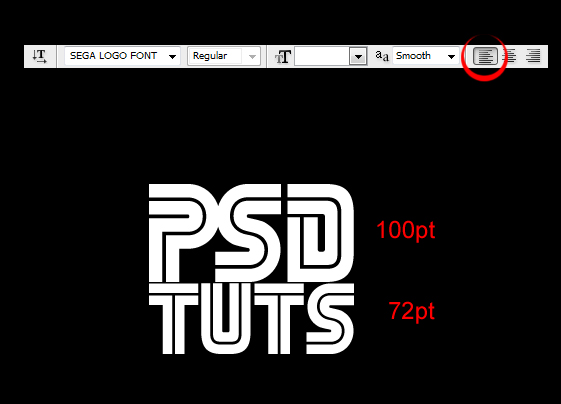


 my links:
Re: Powerpoint and graphic design experts come in...
I did this; They don't quite line up evenly, no matter how much I play with the text.
In Photoshop, you would adjust the kerning (the spaces between each letter) to make the two sides of the text line up. In photoshop cs3, after you write text, to access the kerning info, you would go to the file symbol at the far right. Click on that and a little window comes up. The kerning field is the one on the right and 3rd from the top, with the "AZ" with arrows going to the left and right. If you change the number in the field to a higher positive number, the letters will get farther apart.
Unfortunately, Powerpoint does not seem to have this feature. I looked around and could not find it. You may want to create the text in a graphics program and save it out as a png or maybe a gif file.
Hope this helps!
~Julie
Powerpoint '07 does have the kerning option, but it just lets you specify how many points between letters, not necessary drag out the word and auto adjusts it accordingly. I've tried that also. I did create text in a graphic program, and it worked well, the only thing is that I'm worried about the text not being a vector image and the printed output may not be as smooth or as clear as I would like.
Eureka! It worked! Thanks so much!!!
I am glad you worked out a solution!
~Julie